
Published by Bastion Prime | Edited by Heorhi Tratsiak, CEO
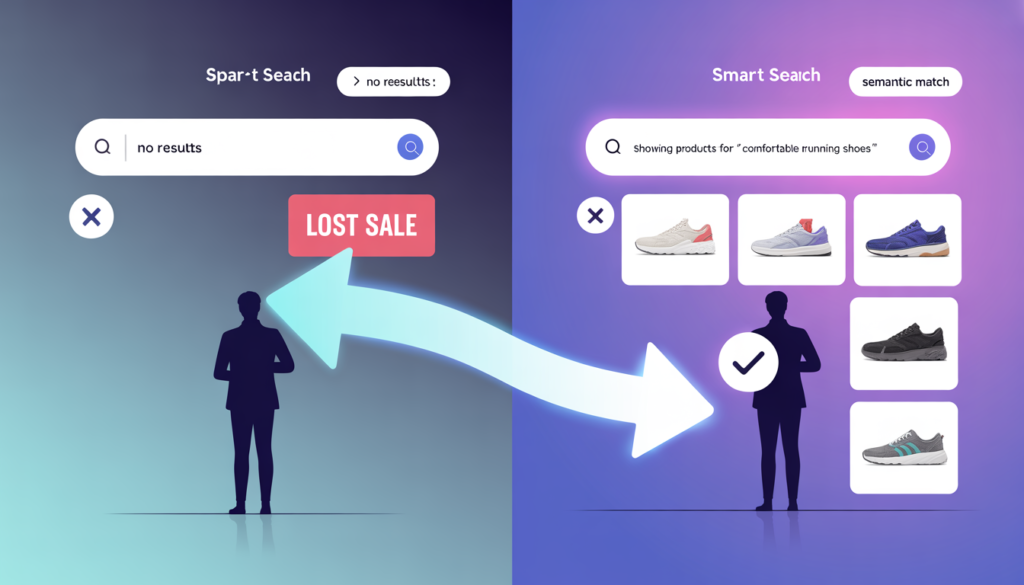
A customer types “blue summer dress” into your search bar. You have a “light cotton navy sundress” in stock. WooCommerce shows nothing. Empty results. Customer leaves. That’s not a search box. That’s a conversion killer. Here’s how to replace it with AI search that understands typos, synonyms, and true intent — in under half an hour.
The default WooCommerce search is painfully literal. It matches keywords and nothing else. “Running headphones” won’t find your “sweat‑resistant wireless earbuds.” “Gift for mom” won’t show your “personalized necklace.” Every empty result page is a sale you’ll never get back.
Internal site search is not a minor feature. Visitors who use search convert at 2–3 times the rate of those who don’t. If your search is broken, you’re leaving money on the table.
This guide explains what “AI search” actually means, compares the best solutions for 2026 (Algolia, Klevu, ElasticPress AI, IndexIQ, and others), and walks you through setting up a smart search that understands typos, synonyms, and customer intent — all in about 30 minutes.
Part 1: Why Regular Search Fails (And What “AI Search” Really Means)
Most WooCommerce stores rely on standard keyword search. The customer types “wireless noise cancelling headphones.” Your product title says “Bluetooth over‑ear headphones with ANC.” No match. Zero results.
True AI search uses vector embeddings. Think of each product as a point on a map based on its title, description, attributes, and even customer behavior. When a shopper searches, their query becomes another point. The engine returns the closest products — not by exact words, but by meaning.
That’s why “running headphones” finds your “sweat‑resistant workout earbuds.” That’s why “gift for girlfriend” pulls up your jewelry and perfume collections, even if the word “gift” never appears in the descriptions.
AI search also handles typos (“headphons” → “headphones”), synonyms (“sneakers” → “running shoes”), and personalization (repeat buyers see their preferred brands first).
Part 2: The Best AI Search Tools for WooCommerce in 2026
Here’s a head‑to‑head comparison of the leading solutions.
| Tool | Core AI Feature | Pricing (Starting) | Best For |
|---|---|---|---|
| Algolia | Typo tolerance, synonym detection, AI ranking | Free tier (10k requests/mo) | Large catalogs, speed‑critical stores |
| Klevu | NLP search, category merchandising, recommendations | ~$449–849/month | Enterprise stores needing all‑in‑one suite |
| ElasticPress AI | Elasticsearch, “Did you mean,” synonyms | $29/month (Engage plan) | WordPress/WooCommerce sites that want affordable AI |
| IndexIQ | Semantic reranking, typo handling, voice search | One‑time fee (via WooCommerce.com) | Most WooCommerce stores; quick setup, no recurring fees |
| Searchanise | Keyword + synonym expansion, behavioral ranking | ~$19/month | Smaller catalogs upgrading from default search |
| Queryra | Pure vector embeddings, true semantic matching | Not publicly listed | Stores needing “understand intent without keyword hints” |
If you want the easiest path that still delivers real AI smarts, IndexIQ is a popular choice. It’s a one‑time payment plugin that adds semantic search, typo tolerance, and voice search without a monthly subscription.
If you need enterprise‑grade speed and personalization, Algolia or Klevu are the industry standards.
Part 3: 30‑Minute Setup – Get AI Search Live Today
We’ll walk through IndexIQ because it’s the simplest to implement for a typical WooCommerce store.
Step 1 – Install the Plugin
In your WordPress admin, go to Plugins → Add New. Search for “IndexIQ – AI Smart Search & Filters”. Install and activate it.
Step 2 – Enable AI Smart Search
Navigate to WooCommerce → IndexIQ → General Settings. Check the box labelled “Enable AI Smart Search”. This turns on semantic vector reranking. Products are now retrieved by meaning, not just keywords.
Step 3 – Generate API Keys and Index Your Products
The plugin will prompt you to create a free account (or enter existing API keys). Follow the instructions – it takes two minutes. Once keys are entered, go to the “Indexing” tab and click “Run Full Index”. For a catalog of 500–1,000 products, indexing finishes in under 10 minutes.
Step 4 – Turn on Typo Tolerance and Synonyms
Under IndexIQ → Search Settings:
- Enable “Smart Typo Tolerance” (fixes “headphons” → “headphones”).
- Add a few custom synonyms: “sneaker → runner”, “couch → sofa”, “cell → mobile”. The more you add, the smarter your search becomes.
Step 5 – Style the Live Search Box
Customize the search bar’s appearance to match your theme. Enable “Live Search” (results appear as the customer types). This alone can lift conversions because customers see options immediately.
Step 6 – Test It
Search for queries that failed before:
- “blue dress” when your product says “navy sundress”.
- “gift for dad” when you have “personalized men’s wallet”.
- A clear typo like “runnng shoes”.
If results still miss, you may need richer product data (add keywords to descriptions).
Step 7 – (Optional) Voice Search
Flip on voice search in the same settings panel – especially useful for mobile shoppers.
That’s it. Your store now has AI‑powered search that actually understands what customers mean.
Part 4: How to Measure Success
Two weeks after installing, compare these metrics:
| Metric | Before | After |
|---|---|---|
| Search conversion rate | 2‑3% (typical) | Should increase |
| Zero‑result search rate | Often 15‑25% | Goal: under 5% |
| Average order value from search | Baseline | Often higher because AI suggests relevant products |
You can find these numbers in WooCommerce analytics or your search plugin’s dashboard.
Part 5: The Contrarian Take – When You Shouldn’t Bother
AI search is powerful, but it’s not for every store.
Skip it if:
- You have fewer than 100 products (customers can browse manually).
- Your catalog is highly uniform (e.g., all items are “white cotton t‑shirt” with minor variations).
- Your monthly visitors are under 1,000 and search is rarely used.
Invest in AI search if:
- You have 200+ products with diverse attributes (size, color, material, use case).
- Customers frequently use the search bar but leave with no results.
- You sell products that can be described in multiple ways (“trainers” vs “sneakers”).
For most established stores, AI search pays for itself within weeks through recovered sales.
Your Next Move
You don’t need a developer or a big budget. Install IndexIQ (or your preferred plugin), follow the 30‑minute setup, and start tracking the difference.
If you’d rather have experts fine‑tune your search relevance, add custom ranking rules, or integrate with personalization engines, we can help.
Book a free AI search audit. We’ll analyze your current search performance, identify lost revenue, and recommend the best tool for your catalog.
👉 Book Your Free Consultation →