
Published by Bastion Prime | Edited by Heorhi Tratsiak, CEO
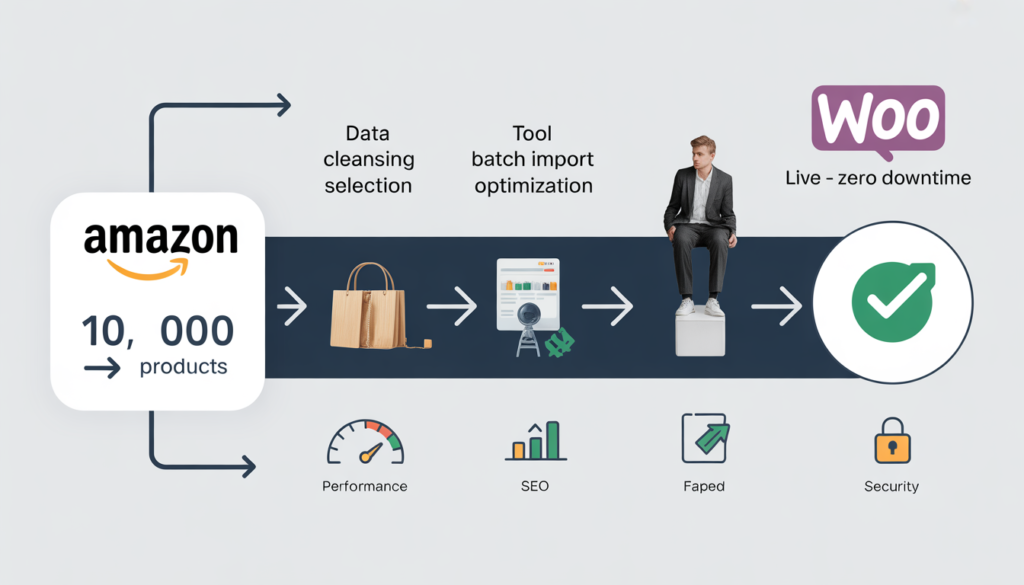
You have 10,000 products on Amazon. A full migration could take weeks, break your SEO, and bring your business offline for days. One wrong move and your product pages vanish, your customers can’t find you, and your revenue takes a hit. Here’s the exact blueprint for migrating a high‑volume Amazon store to WooCommerce — with zero downtime and all your SEO value intact.
Migrating from Amazon to WooCommerce is not like moving a small boutique with a hundred SKUs. When you have ten thousand products — each with variations, images, descriptions, and historical sales data — the complexity scales exponentially. What works for a small store will crash yours.
I have helped dozens of large‑catalog merchants make this transition. The good news is that WooCommerce can comfortably handle 10,000, 50,000, or even 100,000 products when optimized correctly. The bad news is that most migration guides skip the hard parts: preserving SEO value across ten thousand URLs, keeping your store live while you migrate, and ensuring that the resulting WooCommerce store doesn’t collapse under its own database weight.
This guide is written for serious business owners and developers. It is a technical, step‑by‑step blueprint for moving a 10,000+ SKU catalog without a single minute of downtime.
Related: Before you begin, understand the full financial picture. Read Why I Migrated My Amazon FBA Business to WooCommerce (And Doubled My Margin in 90 Days).
Phase 1: Pre‑Migration Audit and Data Cleansing
Do not move your data until you have cleaned it. Amazon’s flat files contain duplicate rows, expired image URLs, broken category mappings, and orphaned variations. If you migrate garbage, you will have garbage on WooCommerce.
1.1 Take Inventory of Your Amazon Catalog
Before you export a single CSV, audit the types of products you sell. Count the total SKUs, product variations, and attributes. Note any custom metadata, inventory tracking logic, or digital product files.
- Simple vs variable products: How many of your SKUs are standalone items versus products with size, color, or material variations?
- Pricing complexity: Do you have sale prices, tiered pricing, or time‑based discounts?
- Digital assets: Are product images hosted on Amazon’s CDN (temporary URLs) or stored elsewhere?
1.2 Clean Your Data Before Export
Export your inventory from Amazon Seller Central using the Category Listings Report — this is the most detailed export available. Open it in a spreadsheet tool and run the following checks:
- Remove obsolete products: Delete SKUs with zero sales in the last 12 months.
- Standardize product names: Ensure consistent naming conventions.
- Fix image URLs: Amazon image URLs expire. Before migration, download all images to a permanent location (your server or a CDN) and update the CSV with new URLs. Do not rely on Amazon’s temporary links.
- Validate product types and categories: Create and organize product categories and tags in WooCommerce before importing, or prepare your CSV so your import tool can automatically create them.
1.3 Map Your URL Structure
Document your current Amazon URL structure for products, categories, and pages. Ideally, you will preserve your URLs. However, the more common approach is to implement comprehensive 301 redirects from your old URLs to the new WooCommerce URLs.
Create a spreadsheet that maps every old Amazon product URL to its new WooCommerce destination. For 10,000 products, you will need an automated way to generate this mapping — a manual spreadsheet will take weeks.
Related: For more details on preserving SEO, read How to Avoid Losing SEO Rankings When Moving from Amazon to WooCommerce.
Phase 2: Server and Hosting Preparation
WooCommerce can handle 10,000 products, but not on cheap shared hosting. Before you run a single import, make sure your server can survive it.
2.1 Choose a High‑Performance Hosting Environment
Standard shared hosting is insufficient for a large‑catalog WooCommerce store. You need a VPS or enterprise‑grade managed WooCommerce hosting.
- Recommended VPS specs: 4–8 vCPU, 8–16 GB RAM, fast SSD/NVMe storage. For stores with 10,000+ products and meaningful traffic, 4–8 vCPU and 8–16 GB RAM are the minimum starting point.
- Managed WooCommerce hosts: Cloudways, Kinsta, WP Engine, Pressidium, or similar providers that specialize in WooCommerce optimization. Pressidium, for example, automates scalability with enterprise‑level solutions like load balancing and real‑time monitoring.
- Database optimization: WooCommerce High Performance Order Storage (HPOS) moves order data out of the generic
wp_postsandwp_postmetatables into dedicated tables — a massive leap for scalability.
2.2 Set Up a Staging Environment
Throughout the migration process, you will be building your new WooCommerce store in a staging environment. Staging environments are typically provided by your hosting provider and should match your production environment as closely as possible.
Never run a bulk import directly on your live server. Always test on staging first.
2.3 Install Caching and Performance Plugins
Before importing, install and configure:
- Page caching: WP Rocket, LiteSpeed Cache, or W3 Total Cache.
- Object caching: Redis object cache dramatically reduces database load. With the right hosting, Redis can be configured to work seamlessly with WooCommerce.
- Image optimization: ShortPixel, Imagify, or EWWW to compress images on the fly.
- CDN: Cloudflare or a hosting‑integrated CDN for static assets.
Phase 3: Choosing the Right Migration Tools for 10,000+ SKUs
For 10,000 products, you cannot use manual CSV import. The built‑in WooCommerce importer will time out, fail silently, or create duplicate entries.
3.1 Automated Migration Plugins vs. Custom Solutions
For a catalog of this size, you have three options:
| Option | Best For | Time | Technical Skill |
|---|---|---|---|
| LitExtension | Hands‑off migration, 2,000–10,000 SKUs | 2–6 hours | Low |
| Cart2Cart | Pay‑as‑you‑go, good for smaller high‑volume catalogs | 2–6 hours | Low |
| WP All Import Pro | Full control, recurring imports | 4–12 hours (setup) | Medium–High |
| Custom API Importer | Enterprise‑scale, complex data | 1–3 weeks dev | High |
3.2 Bulk Import with WP All Import Pro (Recommended)
For stores with 10,000+ products and complex variation structures, WP All Import Pro with the WooCommerce add‑on is the most reliable choice. It handles large CSV files, supports drag‑and‑drop field mapping, and processes imports in batches to avoid timeouts.
Critical step for large imports: When importing large WooCommerce catalogs, incremental processing with resumable chunks is critical. Ensure your plugin supports chunked imports and can resume after failures.
3.3 Automated Services (LitExtension, Cart2Cart)
If you prefer a hands‑off approach, both LitExtension and Cart2Cart offer automated migrations with paid support. Cart2Cart claims to migrate Amazon to WooCommerce in a few hours with zero impact on your current Amazon store performance. A full migration can range from a few hours to several days for very large stores.
Whichever tool you choose, always run a demo migration first with a subset of your products (e.g., 100 SKUs). Validate the results before committing to the full migration.
Phase 4: Data Migration Strategy (Zero Downtime)
The key to zero downtime is simple: do not touch your live Amazon store until the WooCommerce store is fully tested and ready.
4.1 Run the Import in Batches
For 10,000 products, break your import into manageable batches:
- Batch 1 (Test): 100–200 products. Validate field mapping, image migration, and variations.
- Batch 2 (Small): 500–1,000 products. Check performance and server load.
- Batch 3 (Remainder): The rest of the catalog.
4.2 Import Related Data in Order
If your migration tool supports it, import in this sequence:
- Categories and tags — first, so they exist when products are imported.
- Products — including variations, attributes, images.
- Product reviews — using a plugin like Ryviu or iRivYou.
- Customer data — emails, names, order history (if migrating).
- Orders — at least the last 12 months of order data.
4.3 Verify Data Integrity After Each Batch
After each batch, spot‑check:
- Are product variations correctly grouped? (Size, color, material)
- Are images displaying properly?
- Are prices and SKUs correct?
- Are categories assigned correctly?
Keep detailed logs of what was imported, what failed, and what needed manual correction.
Phase 5: Performance Optimization for 10,000+ Products
A large catalog creates unique performance challenges. What works for a boutique shop with 50 products can bring an enterprise store to its knees.
5.1 Database Optimization
Product attribute queries become increasingly complex as catalog size grows. Multi‑criteria searches for price ranges, categories, and attribute combinations can consume significant processing time on large catalogs.
What to do:
- Enable High Performance Order Storage (HPOS) to move order data out of overloaded tables.
- Optimize database indexes. Large stores suffer because MySQL does not index your product table correctly — you can fix this manually.
- Schedule regular database cleanup to remove expired transients, post revisions, and orphaned data.
5.2 Frontend Performance
Shop pages with large product catalogs require loading multiple product images, pricing information, and availability data simultaneously. Poorly optimized shop pages can require downloading megabytes of data just to display product listings.
What to do:
- Implement image lazy loading.
- Use a CDN for static assets.
- Enable server‑side page caching.
- Consider using a dedicated product search solution (Elasticsearch, Algolia) for catalogs over 10,000 products.
5.3 Crawl Budget Management
With 10,000+ products, Google cannot crawl everything during each visit. You must optimize crawl budget carefully.
- Block low‑value pages from crawling (filter pages, tag archives, cart, checkout).
- Fix broken internal links and eliminate redirect chains.
- Optimize your XML sitemap — split into multiple sitemap files (e.g.,
sitemap-products-1.xml,sitemap-products-2.xml). - Remove thin content pages and consolidate similar products.
Phase 6: SEO Preservation and URL Redirects
This is where most high‑volume migrations fail. You cannot afford to lose SEO value across 10,000 product pages.
6.1 Create Your 301 Redirect Map
You need a one‑to‑one mapping from every old Amazon product URL to every new WooCommerce product URL.
For 10,000 products, do this programmatically:
- Export a list of all Amazon product ASINs and URLs.
- Generate new WooCommerce URLs based on your chosen structure (e.g.,
yoursite.com/product/[product-slug]). - Create a CSV with two columns:
old_urlandnew_url.
6.2 Implement 301 Redirects (Not 302)
Once your redirect map is ready, implement 301 redirects for all URL types — product pages, categories, blog posts — to preserve link equity. 302 redirects do not pass SEO value.
Implementation options:
- Use Rank Math’s built‑in redirect manager (free tier includes redirects).
- Use the Redirection plugin.
- Add redirect rules to your
.htaccessfile (Apache) or Nginx config. - Use a bulk import tool to upload your redirect CSV.
6.3 Preserve Meta Data and Schema
Migrate your meta titles, descriptions, and structured data from Amazon to WooCommerce. For large catalogs, use a plugin like Rank Math Pro to bulk‑edit meta fields or automate schema generation.
6.4 Submit New Sitemaps and Monitor
After launch:
- Generate and submit new XML sitemaps to Google Search Console.
- Monitor coverage for 404 errors for at least two weeks.
- Use Google Search Console to verify that the old URLs are being replaced by new ones in the index.
Related: For a complete SEO framework, read SEO for WooCommerce: 10 Settings That Actually Work.
Phase 7: Post‑Migration and Launch
7.1 Keep Amazon Live During Testing
Do not deactivate your Amazon store until your WooCommerce store has been fully tested and is receiving real orders. Run both channels in parallel for 2–4 weeks.
7.2 Test Thoroughly
Before the public launch, test:
- Checkout flow — complete a real purchase using a test payment gateway.
- Search functionality — ensure customers can find products.
- Filtering and sorting — test attribute filters, price ranges, and sorting options.
- Mobile responsiveness — verify that product pages display correctly on all devices.
- Load testing — simulate traffic to ensure your server can handle the load.
7.3 Go‑Live and Monitor
When you are ready:
- Point your domain to the new WooCommerce hosting.
- Keep the Amazon store active but reduce ad spend.
- Add packing inserts to Amazon shipments directing customers to your new site.
- Monitor Google Search Console daily for 404 errors, crawl anomalies, and indexing issues.
7.4 Post‑Migration Cleanup
After launch:
- Regenerate product lookup tables in WooCommerce if needed.
- Clear all caches (server cache, CDN cache, plugin cache).
- Verify that redirects are working for a sample of 100+ products.
- Check Core Web Vitals in Google Search Console — address any pages that fail.
The Contrarian Take: When You Should NOT Migrate 10,000 Products
I will lose some consulting fees here, but honesty matters.
Do not migrate a 10,000+ SKU catalog if:
- You have not cleaned your data. Migrating dirty data is worse than not migrating at all.
- Your monthly revenue is under $30,000. The ROI window is too long for a project of this scale.
- You have no technical resources (or budget to hire them). A migration of this size requires ongoing maintenance.
Do migrate if:
- You want to own your customer data and stop paying Amazon 15–30% in fees.
- You have a team (or agency) that understands WooCommerce at scale.
- You are ready to invest in proper hosting and ongoing optimization.
Final Checklist for 10,000+ SKU Migration
| Phase | Task | Completed |
|---|---|---|
| Pre‑Migration | Audit catalog, clean data, map URL structure | ☐ |
| Hosting | Set up VPS/managed hosting, staging environment, caching, CDN | ☐ |
| Tool Selection | Choose migration plugin (WP All Import, LitExtension, Cart2Cart) | ☐ |
| Data Migration | Run test import (100–200 SKUs), validate, then run full import in batches | ☐ |
| Performance | Enable HPOS, optimize database, set up object caching, configure crawl budget | ☐ |
| SEO | Create redirect map, implement 301 redirects, preserve meta data, submit sitemaps | ☐ |
| Testing | Test checkout, search, filtering, load testing, mobile responsiveness | ☐ |
| Launch | Keep Amazon live, point domain, add packing inserts, monitor GSC | ☐ |
Your Next Move
Migrating 10,000 products from Amazon to WooCommerce is a significant undertaking, but it is one of the most valuable investments you can make in your business. The result is a store you own, customers you control, and margins that double overnight.
If you prefer to have experts handle the entire process — from data cleansing to performance optimization to launch — we offer fixed‑price migration packages for high‑volume catalogs.
Book a free consultation to discuss your catalog size and get a custom migration plan.
👉 Book Your Free Consultation →
Related Reading
- How to Migrate Products from Amazon to WooCommerce Without Manual CSV Export
- How Much Does It Cost to Migrate from Amazon to WooCommerce Professionally?
- What Is the Best Plugin to Migrate Amazon Products to WooCommerce?
- How to Avoid Losing SEO Rankings When Moving from Amazon to WooCommerce
- WooCommerce vs Shopify for Amazon Sellers: Which Is Better for Migration?
- Store Audit & Strategy Session ($197 – credited toward any package)
- Growth Package ($3,997) – For Sellers Ready to Scale
- Premium Package ($7,997) – Complete Done‑For‑You Store for Established Brands