
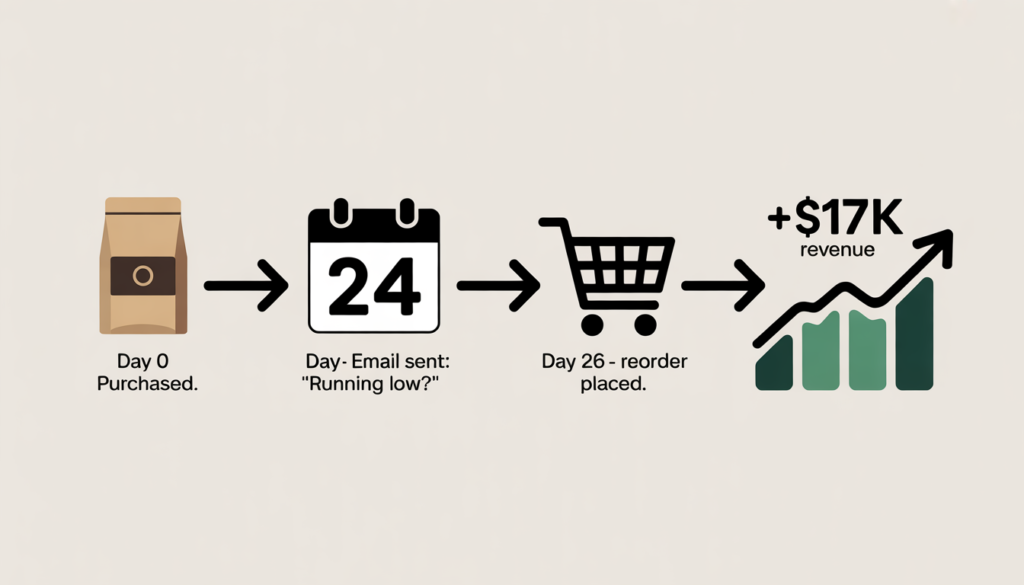
You sell coffee beans. A customer buys a bag every three weeks. You have their email. But you never remind them to reorder. So they try a competitor. Or forget about you entirely. Or run out of coffee at 7 AM on a Tuesday and buy from Amazon. That’s not a customer problem. That’s a systems problem. Here’s how to build automated replenishment emails that pull customers back on schedule — before they even realize they need to restock.
A customer who buys from you once is not a loyal customer. A customer who buys from you on a predictable schedule without you lifting a finger — that’s a business asset.
Replenishment emails are the engine behind that asset. They automatically reach out to customers based on past purchase timing and product usage patterns. Your customer finishes their last bottle of face serum on day 28. You send a reorder reminder on day 26. They click, repurchase, and never think about finding another brand.
This guide covers how to set up automated replenishment emails in WooCommerce, which tools actually work, and how to avoid the most common mistakes that turn helpful reminders into annoying spam.
Part 1: What Replenishment Emails Actually Do (And Why You Need Them)
A replenishment email is not a generic “we miss you” message. It is a targeted, data-driven trigger that fires based on purchase history.
Unlike abandoned cart emails (which respond to a single event) or win‑back campaigns (which wait for months of silence), replenishment emails work on a cycle. You calculate how long a product typically lasts. Then you set an email to fire a few days before the customer is likely to run out.
Here is why this matters. The average open rate for replenishment emails is significantly higher than standard promotional broadcasts. Customers expect these messages. They want to be reminded. They are actively waiting for you to tell them it is time to reorder.
Good replenishment emails feel like a service, not a sales pitch. Olive oil brand Graza sends a subject line that says “Down to the last drizzle?” — timely, relevant, and useful. Pet supply retailer Chewy uses the straightforward “Running Low?” paired with a visual of the exact product the customer previously purchased. Neither one screams at the customer. Both make reordering frictionless.
Part 2: The Three Tools You Need
WooCommerce does not send replenishment emails out of the box. You need three pieces working together.
The Subscription Plugin
If you sell subscription products, you are already using a plugin like WooCommerce Subscriptionsor YITH WooCommerce Subscriptions. These plugins handle recurring payments, manage customer portals, and generate the order events you will use as email triggers. The subscription plugin is your data source — it tells you when a customer has purchased a product on a recurring basis.
The Email Automation Platform
This is where the emails are built and sent. You have two categories to choose from.
Klaviyo is the industry standard for e‑commerce email automation. It integrates natively with WooCommerce, pulls real‑time order data, and offers pre‑built flows for replenishment reminders. Klaviyo captures every checkout start, product view, and order placement. Every action becomes a trigger.
ShopMagic runs entirely inside WordPress and WooCommerce. No external services. All data stays in your own database. ShopMagic uses an event‑filter‑action model. You select a trigger, add optional conditions, and define what happens next.
AutomateWoo is another WordPress‑native option. It works especially well with WooCommerce Subscriptions. You can create coupon templates that generate unique discount codes for each subscriber and attach them to automated emails.
Omnisend is a third option. It provides replenishment email templates, customer behavior tracking, and built‑in timing logic for common product categories. You can build automated campaigns in minutes using their library of examples.
For most sellers, Klaviyo is the right choice. The learning curve is manageable, the pre‑built flows save hours of work, and the data visibility is excellent.
The Tracking Mechanism
You need a way to measure which products are being reordered and when. Klaviyo’s analytics dashboard shows you revenue per recipient, open rates, and click‑through rates for every flow. Without tracking, you are guessing. With tracking, you can adjust timing, offers, and subject lines based on real data.
Part 3: Step‑by‑Step – Building a Replenishment Flow in Klaviyo
Let us walk through the actual setup.
Step 1: Connect Klaviyo to WooCommerce
Install the Klaviyo plugin from your WordPress dashboard (Plugins → Add New → search “Klaviyo”). Activate it. Go to the plugin settings and paste your Klaviyo Public API key (found under Account → Settings → API Keys).
Next, generate WooCommerce API credentials. In WordPress, go to WooCommerce → Settings → Advanced → REST API. Click “Add Key.” Set permissions to Read/Write. Copy the Consumer Key and Consumer Secret. Paste these into Klaviyo’s integration settings.
Once connected, Klaviyo syncs the last 90 days of order history automatically.
Step 2: Create a New Flow
In Klaviyo, navigate to Flows → Create Flow. You can either start from scratch (Build Your Own) or use a pre‑built template. For replenishment emails, you want to start from scratch.
Name the flow something clear: “Subscription Replenishment – Coffee 3‑Week.”
Step 3: Set the Trigger
The trigger is the event that starts the flow. For replenishment emails, use the “Placed Order” metric. Do not use “Started Checkout” or “Viewed Product” — those are for abandoned cart flows, not replenishment.
After selecting “Placed Order,” add a time delay. The delay should match your product’s typical usage period. For a coffee subscription that ships every three weeks, set a delay of 18 days. For a skincare serum that lasts 30 days, set a delay of 24 days.
The delay is critical. Send the email too early, and the customer ignores it. Send it too late, and they have already run out and bought elsewhere.
Step 4: Add Filters (Optional)
Filters narrow down which orders trigger the flow. For a replenishment flow, you typically want to filter by specific products or product categories.
In the flow editor, add a filter condition. Select “Product” or “Category” from the dropdown. Choose the specific SKU or category that you want to replenish. For example, only trigger this flow for orders that include “Coffee – Dark Roast 12oz.”
You can also filter by order total, customer location, or whether the customer has previously received the flow. The last one is useful for preventing duplicate emails when someone orders multiple items at once.
Step 5: Build the Email
Add an email action block after the delay. Design the email to accomplish one thing: get the customer to reorder the same product again.
Subject line. Short, specific, and urgent. “Running low on [Product Name]?” “Time to restock.” “Your [Product] is almost gone.” Chewy uses “Running Low?” with great success.
Body content. Remind the customer what they purchased. Include a clear image of the product. Add a prominent “Reorder” or “Buy Again” button that links directly to the product page. If you offer a subscription discount (e.g., 10% off for recurring orders), mention it.
Personalization. Use Klaviyo’s event properties to pull the specific product name and image directly from the order. The customer should see the exact item they previously bought, not a generic suggestion.
Step 6: Set Up a Secondary Follow‑Up (Optional but Recommended)
One email is often enough. But for higher‑value products or longer usage cycles, add a second email.
Duplicate the email block. Add another delay after the first email — typically 5 to 7 days. Change the subject line to something like “Last chance to restock” or “Your reorder link expires soon.” Include a small discount (5–10%) if the customer did not act on the first email.
Step 7: Activate and Monitor
Turn the flow on. Give it a few days to start capturing orders. Then check the analytics tab. Look at open rates, click‑through rates, and revenue per recipient.
If open rates are below 20 percent, test a different subject line. If click rates are below 5 percent, check the button placement and the discount offer. If revenue per recipient is low, your product timing may be off — adjust the delay.
Part 4: Step‑by‑Step – Building a Replenishment Workflow in AutomateWoo (Native Alternative)
If you prefer to keep everything inside WordPress, AutomateWoo is a solid alternative.
Step 1: Install and Activate AutomateWoo
AutomateWoo is a premium WooCommerce extension. Install it via Plugins → Add New → Upload Plugin. Activate it. You will see an AutomateWoo menu item in your WordPress admin sidebar.
Step 2: Create a New Workflow
Go to AutomateWoo → Workflows → Add Workflow. Give it a descriptive name: “Replenish – Dog Food 30‑Day.”
Step 3: Set the Trigger
Select “Order Status Changed” as the trigger. Choose “Completed” as the specific status. This fires the workflow when an order is marked complete (which typically happens when payment is confirmed and fulfillment begins).
Step 4: Add a Delay
In the workflow timeline, add a delay action. Set the duration based on your product usage. For dog food that lasts 30 days, set a delay of 25 days. The delay starts counting from the date the order was completed.
Step 5: Add Conditions
Conditions ensure the workflow only applies to the right orders. Add a “Products” condition and select the specific SKUs or categories you want to replenish. You can also add a “Customer” condition to exclude certain user roles (like administrators) or to target only customers who have made at least one previous purchase.
Step 6: Add an Email Action
Add an “Email” action. Compose the email using AutomateWoo’s built‑in editor. Use shortcodes to personalize the content: {{ customer.first_name }}, {{ order.items | list }}, {{ order.view_url }}.
If you want to include a discount, create a coupon template first (AutomateWoo → Coupons → Add Template). Set the discount amount, usage limits, and expiration. Then, in the email action, select the coupon template. AutomateWoo generates a unique code for each customer automatically.
Step 7: Add User Tags for Advanced Control
If you want to ensure each customer only receives the replenishment email once per subscription cycle, use user tags. Create a tag called “replenishment_sent.” Add an action after the email that adds this tag to the customer’s record. Then add a condition at the beginning of the workflow that checks for the absence of this tag. Once the tag is applied, the workflow will not fire again for that customer until you reset the tag (or until the subscription renews and creates a new order).
Step 8: Save and Test
Save the workflow. Then test it by placing a test order on your site that matches the product and order status conditions. Confirm that the email sends after the correct delay.
Part 5: The Contrarian Take – When You Should NOT Automate Replenishment Emails
I will lose some consulting fees here, but honesty matters.
Do not set up automated replenishment emails if:
- Your products have unpredictable usage. A winter coat does not wear out on a schedule. A gift item is not repurchased by the same person.
- Your average order value is under $20. The email sends at a cost, and low‑value replenishment flows rarely cover the effort.
- You do not have enough order data to estimate usage timing. Start with manual post‑purchase emails before automating.
Do set up replenishment emails if:
- You sell consumables. Coffee, pet food, vitamins, skincare, cleaning supplies, ink cartridges, razor blades — anything that runs out.
- You have at least 50 repeat customers per product. The data needed to calibrate timing comes from volume.
- Your subscription product has a predictable delivery cadence. Every 30 days. Every 60 days. Every quarter.
For the right products, replenishment emails generate some of the highest ROI in e‑commerce. A customer who buys through a replenishment flow is not a one‑time purchaser. They are a recurring revenue stream.
Part 6: Real Numbers – What Replenishment Emails Actually Return
Let me give you an example from a real brand (anonymized).
A coffee subscription company migrated to WooCommerce and set up a Klaviyo replenishment flow for their monthly subscribers. They used a 24‑day delay (average bag lasted 28 days, so email sent 4 days early) with a 10% discount for reorders.
Results after 90 days:
| Metric | Value |
|---|---|
| Emails sent | 4,200 |
| Open rate | 47% |
| Click‑through rate | 12% |
| Reorders generated | 504 |
| Average order value | $38 |
| Additional revenue from flow | $19,152 |
| Discount cost (10%) | $1,915 |
| Net revenue | $17,237 |
The flow took four hours to set up. Four hours generated $17,237 in three months. That is not a tactic. That is a business asset.
Your Next Move
You do not need to guess which customers are ready to reorder. Klaviyo and AutomateWoo can track usage timing, send targeted reminders, and measure every dollar of return.
Start with one product category. Coffee. Dog food. Face moisturizer. Set up a single flow. Run it for 30 days. Look at the revenue.
If you would rather have an expert handle the entire setup — Klaviyo integration, flow configuration, tracking, and testing — we offer fixed‑price packages for WooCommerce automation.
Book a free consultation to discuss your product catalog and replenishment timing.
👉 Book Your Free Consultation →
Related Reading
- How to Build an Email List from Amazon Buyers After Migrating to WooCommerce
- Don’t Start an E‑commerce Store Until You Read This Margins Report
- From Launch to First Sale: A Roadmap for Your New WooCommerce Store
- Store Audit & Strategy Session ($197 – credited toward any package)
Bastion Prime is a UK‑registered e‑commerce agency specializing in WooCommerce automation, Klaviyo flows, and replenishment strategies for subscription brands in the USA and UK.